


I’m willing to bet that you spend a lot of time on social media. Hopefully not watching cat videos or getting suckered into the latest Buzzfeed list.
But spending time posting to your various business related social media profiles. You probably spend more time than you want to doing this.
Let’s face it, you probably have better things to do with your time. Especially if you are an entrepreneur.
Do you think the time and effort you are spending on social media is paying off? Is it driving real, measurable results?
You are tracking this sort of thing, right?
Look, if you aren’t tracking your social media efforts you are making a huge mistake.
I’m not here to scare you, but if you don’t have a process in place to understand your social media initiatives then how do you know what you are doing is working?
You don’t.
And I’m not talking about just logging into Google analytics and looking at what social media channels are sending the most traffic.
That only tells you part of the story.
What I mean is the data in those reports are each social media channel as a whole. It is comprised of you sharing your own content and other people sharing your content.
Why it’s good to see that other people are sharing your content, you really need to know if the content you are sharing is driving the results you want.
You need to be able to not only see the efforts of your social media, but also the goals attributed to them.
In this post, I’ll show you a tip that will allow you to easily know if what you are doing is working. No guessing. Just actionable data you can make decisions from.
So let’s take a look at how you can use Google Analytics to accurately track your social media efforts.
Utilize UTM Parameters on ALL Your Shared Social Media URLs
I’m going to skip over the part where I talk about why you should be using Google Analytics and jump straight into one of the benefits.
And one of the benefits of using Google Analytics is that you can use a tagging system called “UTM Parameters” which when appended to your URLs, can pass some key information to your analytics account.
UTM stands for Urchin Tracking Module, obviously the UTM acronym is easier to say and use.
If you haven’t used UTM’s before, chances are you have seen them used before on links.
For example, a standard link might look like this:
- https://bulk.ly/social-media-management/
And that same link with UTM parameters could look something like this:
- https://bulk.ly/social-media-management/?utm_source=twitter&utm_medium=bulkly&utm_campaign=outreach
When using UTM parameters, there are 3 required and 2 optional parameters when building your URL string. To better understand what that means, let’s take a look at the different pieces of the URL.
UTM Source
The first required parameter is the “utm_source” and it is used to tell you where the traffic is coming from. This can be the name of a website, such as Twitter.
UTM Medium
When you need to describe a specific element, you can use the required parameter “utm_medium.” Examples of a medium can be a tool, newsletter, or email where the link was used.
UTM Campaign
The last required UTM parameter is “utm_campaign.” This parameter can be something that describes the initiative used for this link.
Optional UTM Parameters
Should you want to use them, there are two additional and optional UTM parameters. These are “utm_term” and “utm_content.” The “utm_term” is typically used for paid advertising and identifying the keyword used to trigger the ad. While “utm_content” is often used when you are split testing.
One important thing to note is that UTM parameters are case sensitive. So be sure to be consistent or your data may get a bit messy.
Understanding UTM Parameters
Looking back on the example URL I gave with UTM parameters, let’s break down my logic for each parameter.
- utm_source=twitter – This URL is being built to be shared ONLY on Twitter. I’ll dive into why this important a little bit later.
- utm_medium=bulkly – I chose the medium of Bulkly in that I am using Bulkly to share the URL on Twitter and I want to be able to track my efforts using the tool.
- utm_campaign=outreach – I named the campaign “outreach” because the nature of these tweets is that I am reaching out to people who I mentioned in the blog post.
Now anytime this full URL is clicked, all this data is passed into my Google Analytics account.
Why You Must Track Social Media Posts
Without UTM parameters, the links you share on social media will be lumped all into the same bucket as any other social interaction for that channel.
When that happens, you have no idea if the clicks you are getting are coming from your direct social efforts or some other means like a web visitor sharing your content and then one of their followers clicking on that link.
When you use UTM links for updates on social media you will be able to see the results of your efforts.Click To TweetFor example, let’s say that in your Google Analytics account you have a goal set up to track newsletter subscribers. If you are not familiar with goals, it’s a way to define an action or event to be tracked in Google Analytics.
Then, on social media you use UTM links when sharing links to your website.
Over time you will be able to see which channels are leading to more subscribers.
In fact, I have done this a number of times for various sites. For example, I implemented this approach to use social media analytics data to prove that the efforts of the social media manager were bringing in new subscribers.
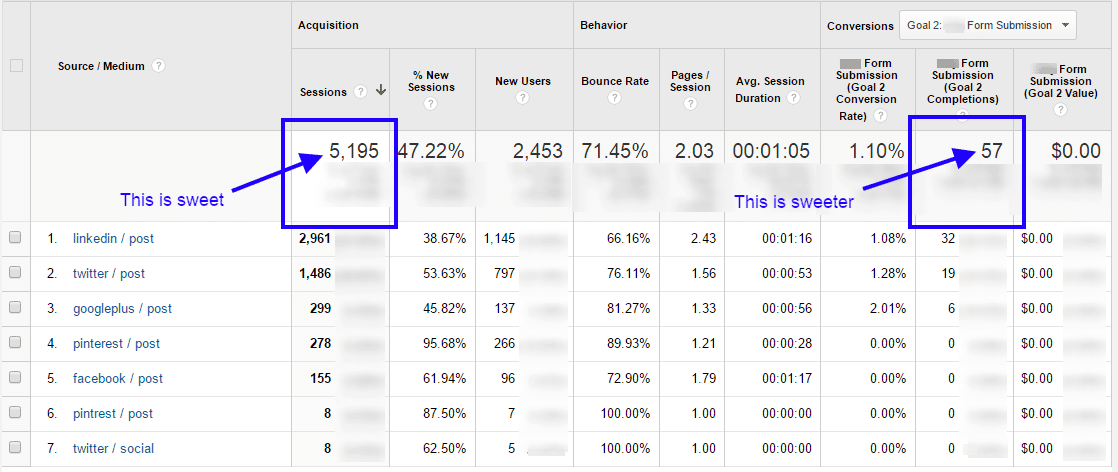
It’s very easy to see that these social efforts drove 5,195 visits that resulted in 57 newsletter subscribers (goal).
If this social media manager had blindly posted standard links, there would be no way to tell if newsletter subscribers were coming from her efforts or somewhere else.
This is why tracking social media links to your site matters.
How To Create UTM Parameters for Tracking Your Social Media Links
Now that you know why UTM parameters are essential when sharing links on social media, let’s take a look at how you can easily create them using a little bit of Microsoft Excel.
If you have been reading my posts long enough, you know that I HATE doing repetitive and manual tasks.
And creating UTM parameters is no exception.
So instead of manually typing up UTM parameter strings for each social media channel, I’ll show you how to use Excel to take out some of the pain of this process.
But before we can really take advantage of Excel, we need to create a few formulas…so here goes.
In a new Excel file, create the following columns:
- Column A – URL
- Column B – Comments
- Column C – utm_source
- Column D – utm_medium
- Column E – utm_campaign
- Column F – utm_content
- Column G – utm_term
- Column H – Final URL
Then in row 2, enter this formula in Cell H2:
=IF(A2="","",
CONCATENATE(A2,IF(C2="","","?utm_source="),IF(C2="","",C2),
IF(D2="","","&utm_medium="),D2,
IF(E2="","","&utm_campaign="),IF(E2="","",E2),
IF(F2="","","&utm_content="),IF(F2="","",F2),
IF(G2="","","&utm_term="),IF(G2="","",G2)))
Then, the last thing you will want to do is convert your sheet into a table. You can do this by clicking in a cell with data and then clicking “Control + T” and then clicking enter.
[yellowbox]Want my ready to go spreadsheet for building UTM links? Click here to download it. [/yellowbox]
Creating Trackable Social Media Links to Your Blog Posts
Now that you know how to create UTM links, you will need to create social media updates using them.
Sure, you could just plug away with some copy and pasting of blog titles into your spreadsheet.
Or…
You can take a smarter approach and automate this.
For me, the easiest way to do this is with Google Sheets (don’t worry, we’ll jump back to Excel). The reason we are going to use Google Sheets is that they have a slick way to scrape blog post titles automatically.
But before we get those titles, we need to get the URLs of all your blog posts. To do this, you will need to find your XML sitemap for your site. In most cases this will be YOURURL.com/sitemap.xml. However, sometimes you will need to drill down to the sitemap for your blog posts. In this case, Bulkly’s can be found at https://bulk.ly/post-sitemap.xml.
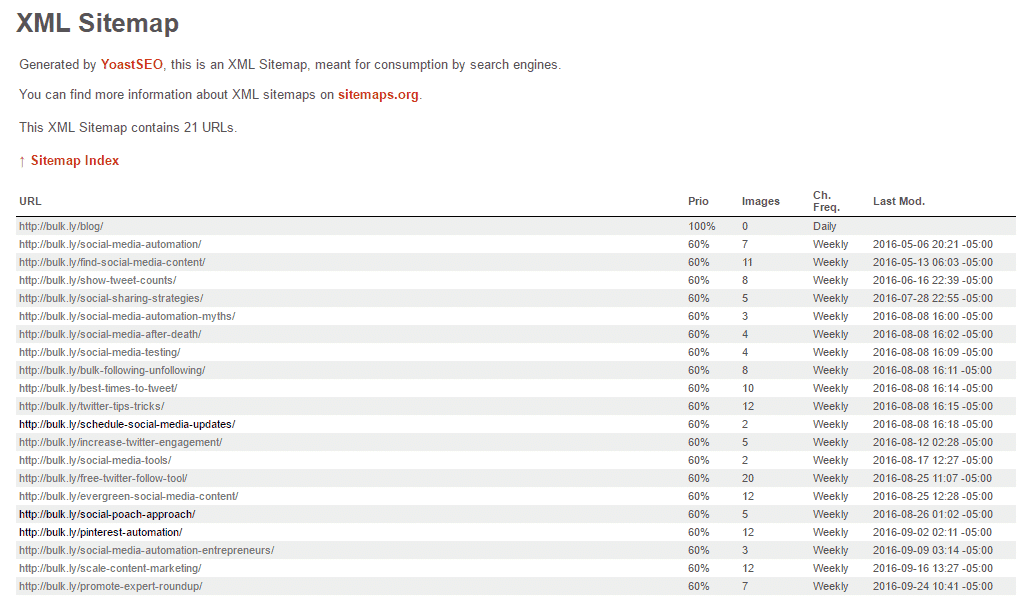
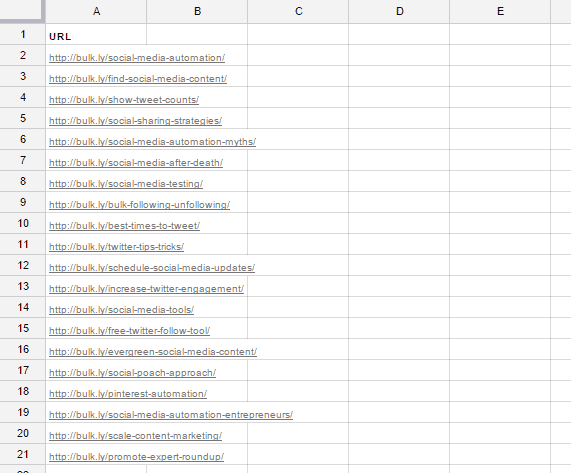
Then you will need to copy all the URLs and paste them into Google Sheets. You’ll need to delete all columns except for your URLs. So it should look like this:
Then, in cell B2 use this formula:
=ImportXML(A1, "//title/text()")
Drag the formula to the end of your URLs and watch your titles magically appear.
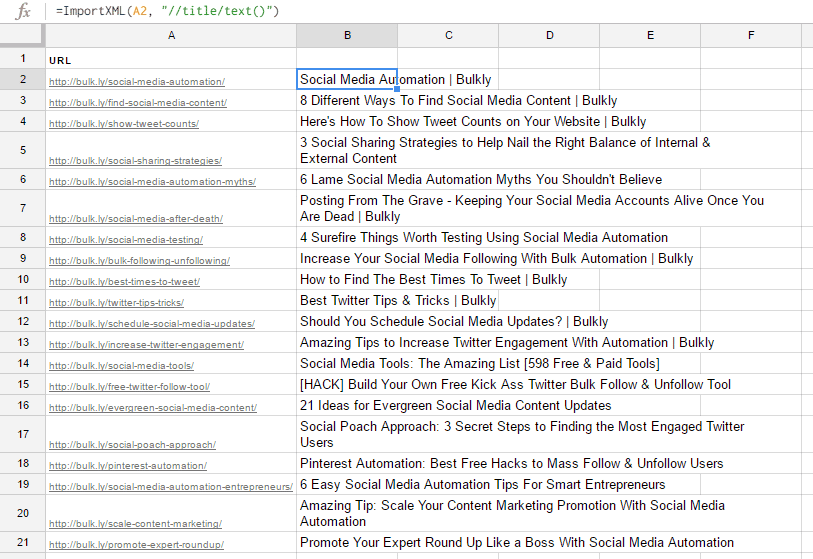
Next, you will need to copy and paste each of these columns into your Excel file.
So, copy the URLs in your Google Sheet and paste them starting in Cell A2 of your Excel file. Then, copy your social media updates and in Excel click on Cell I2 and right-click “paste special > text”. Name Column I “Social Media Update”.
Your Excel file should look something like this:
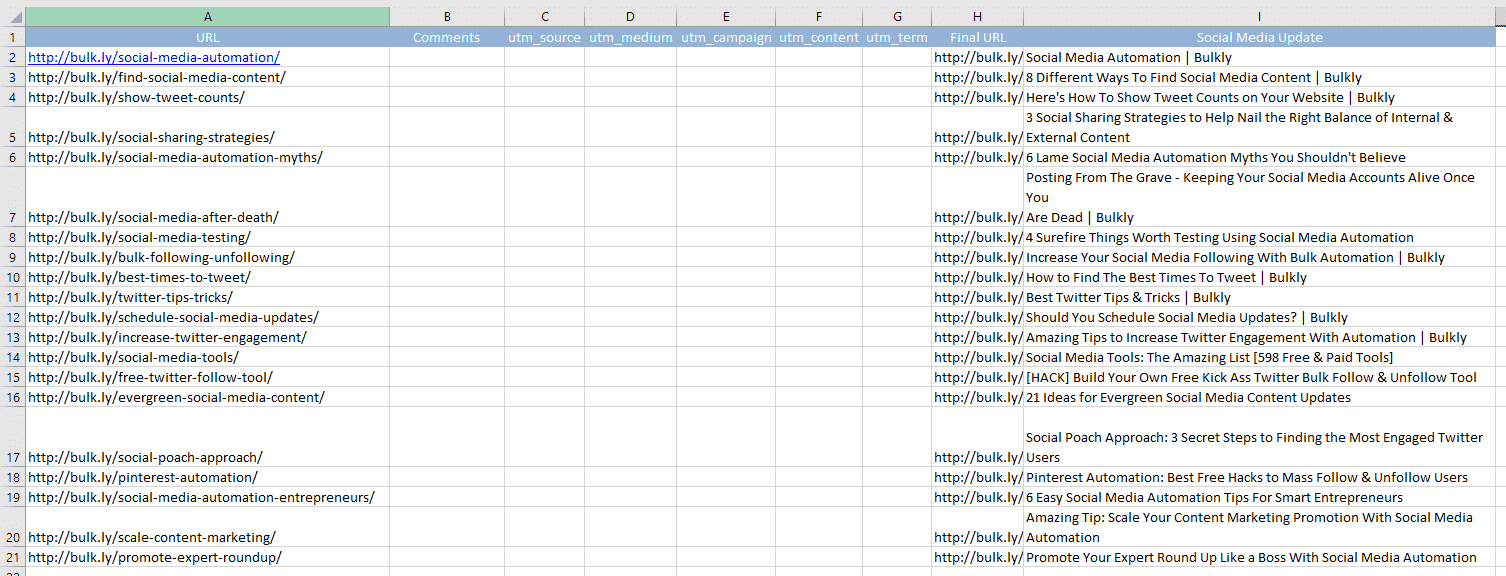
Next, we need to piece together these different columns of data in order construct a social media update. So in Cell J2, enter this formula and drag it down (copy):
=CONCATENATE(I2," ",H2)
You can name this column something like “Social Media Update – Final”. This will build out your social media updates with your UTM parameter.
Be sure to fill out Columns C, D, & E to build out your UTM parameters. It’s important to note that you will need to create UTM’s for each social channel. For example, you might keep everything the same except for the “utm_source” which could be Twitter, Linkedin, Facebook, etc.
[yellowbox]Want my ready to go spreadsheet for building UTM links? Click here to download it. [/yellowbox]
[BONUS TIP]
If you have your sitename appended to the end of your page titles, you can use “find and replace” to easily remove these. For example, some of my page titles are appended with “| Bulkly”.
I would just search for “| Bulkly” and “Replace All” with nothing.
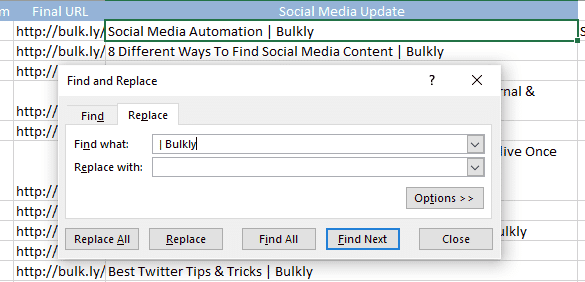
This will take out all instances of your domain name that are appended to the end of your social updates.
Recycling Social Media Updates With UTM Parameters
As you can see, creating UTM parameters can take a little bit of work.
So why not get more use out of them?
You already have them created and your social media updates.
Why not use them again and again?
It’s no secret that most of your social updates will not be seen by a large portion of your following. Therefore, it might make sense to reuse your social media updates again and again.
Interested? Then I have some good news for you.
You can easily use the spreadsheet you created to upload your social media updates to Buffer.
As you might know, you currently can’t upload a CSV (Excel) file directly into Buffer. However, it is possible through using Bulkly which connects to your Buffer account.
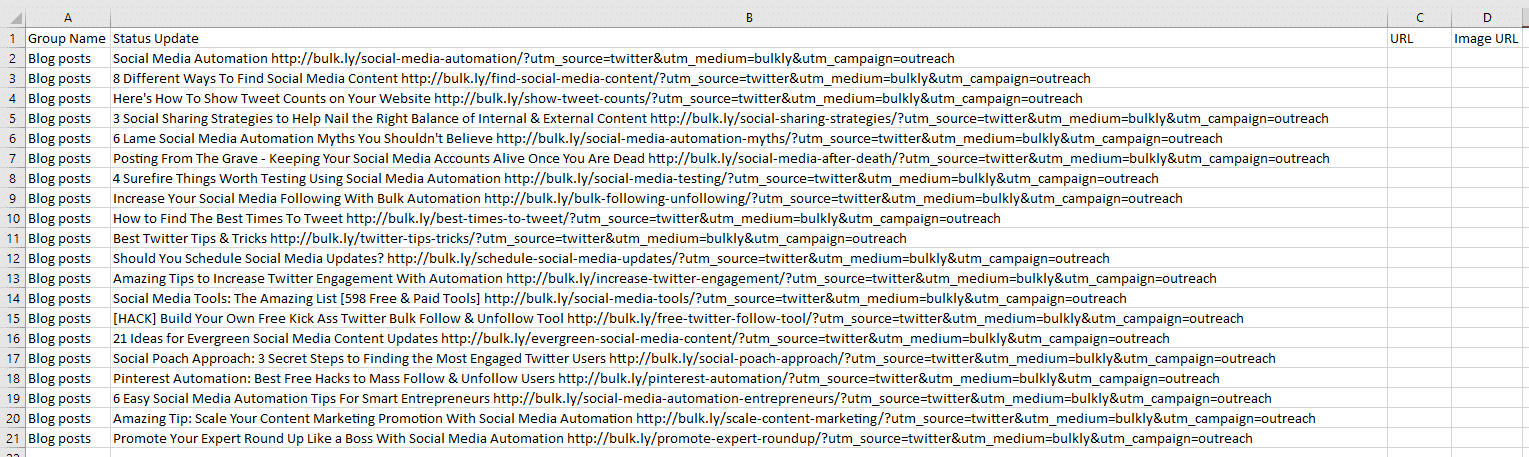
But before we do this, you will need to create a CSV file in the right format for Bulkly. Here’s what you will need to do:
- Column A – This column is used to help your Bulkly account stay organized by creating groups of social media updates. For now, give it a name that can be used to organize your updates.
- Column B – In this column you will enter your social media update. So in the Excel file that you created your UTM parameters in, copy all the social media updates from Column J and paste as text in Column B of this new Excel file.
- Column C – This is designated for URLs, but since it is already part of your status update in Column B you can leave this column empty.
- Column D – One awesome thing about using Bulkly is that you can attach images to your updates on social networks that support it. So if you want to attach an image to your update enter the full URL of the image in this column.
Your file should look like this (Columns C & D can be empty if you don’t want to use them):
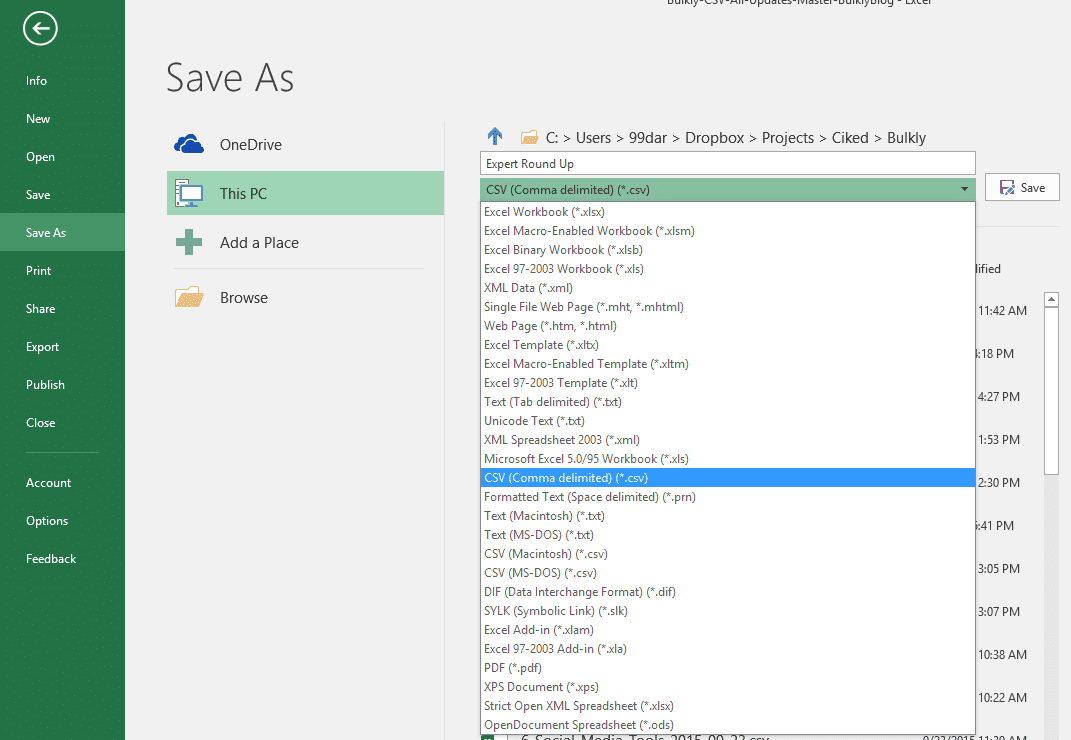
The last thing you need to do is save your Excel file as a CSV. If you haven’t used a CSV file before, it’s basically just a different file type that saves your data in a text format where each column is separated by a comma.
To save as a CSV, click on “File > Save As” and then select CSV from the dropdown menu.
All that’s left from here is to load up these social media updates into your Bulkly account.
Once you are logged into your Bulkly account, go to your dashboard and click on the “Content Upload” option. From there, click on “Upload Content (CSV)” option and locate your CSV file.
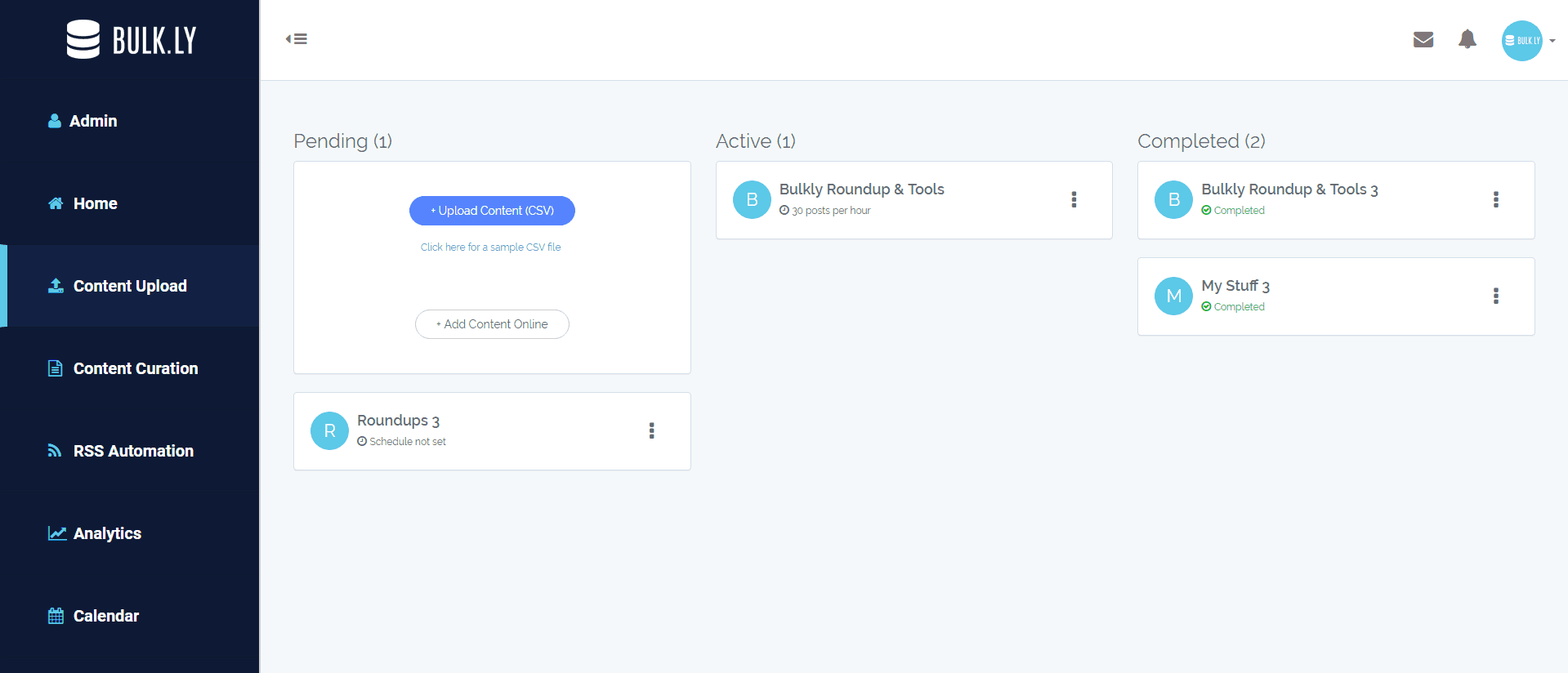
Bulkly will create a group of social media updates.
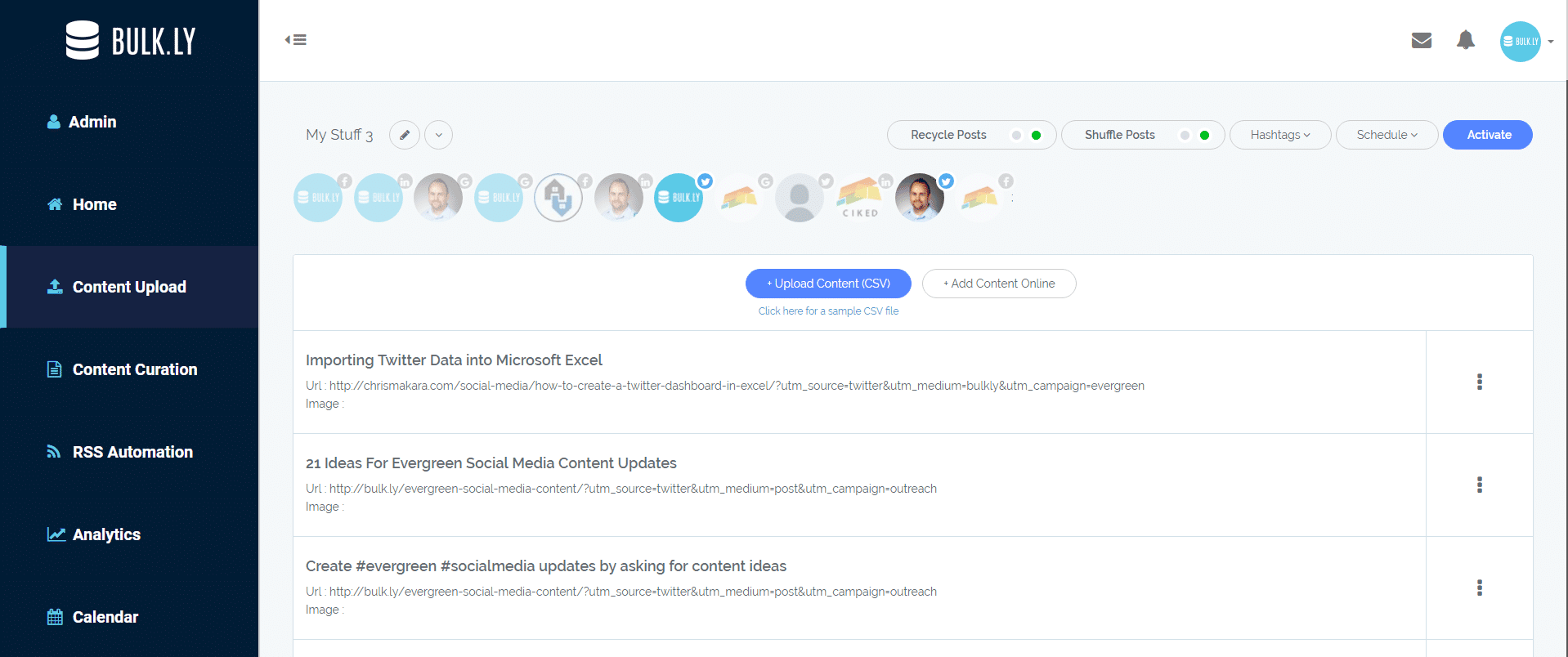
From here you can click to make edits or delete any updates you don’t want to use.
The last step you need to complete is selecting the settings for dripping these posts to Buffer.
You can choose to send just a few a day or a week.
Additionally, you can shuffle up the order – meaning a random post will be chosen to send to Buffer. Lastly, you can pick and choose what social media accounts they should be added to in Buffer.
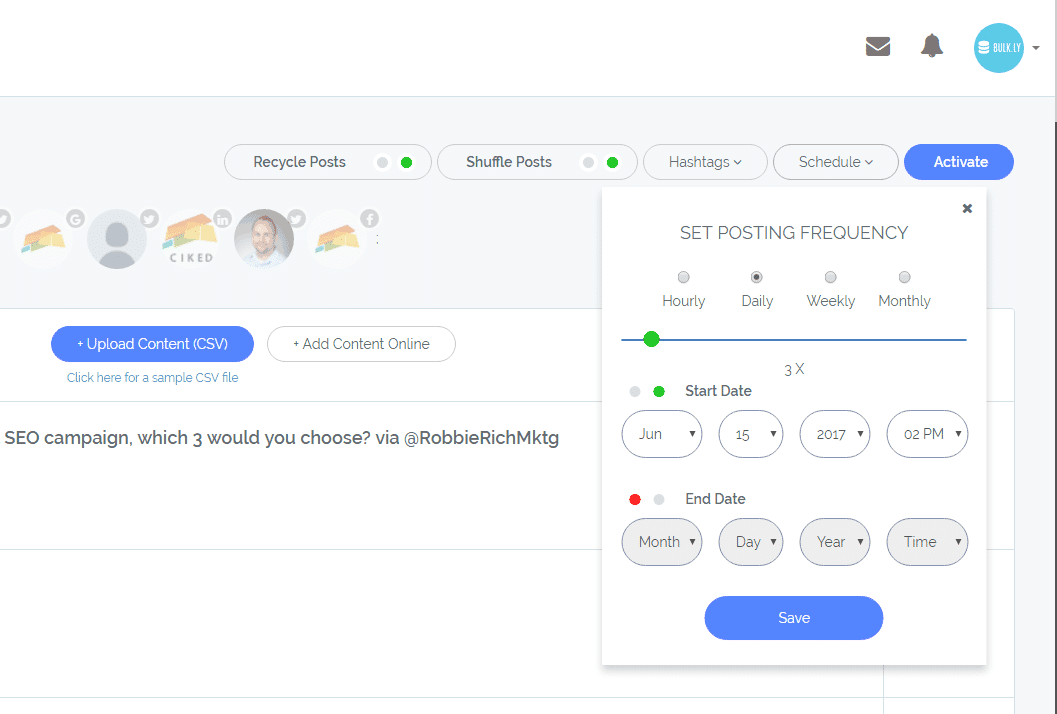
For example, you may have decide to create multiple groups with different UTM parameters. One might post to your Twitter account 4 times a day while your Facebook account might get only 1 post a day. It’s really flexible.
Once you are ready to activate this group and start dripping them to Buffer, click the “Send To Buffer” button and that’s it.
Within a few hours, you will start to see these posts dripped into your Buffer account.
[yellowbox]Want my ready to go spreadsheet for building UTM links? Click here to download it. [/yellowbox]
Viewing Your Social Media Links with UTM Parameters in Google Analytics
When you want to see the results of your UTM tracked social media efforts, you’ll need to login to your Google Analytics account and follow these steps.
- 1 – Click on the “Acquisition” link in the left menu
- 2 – Click the “Campaigns” link
- 3 – Then click the “All Campaigns” link
- 4 – Select the conversions goal you want to see data for
- 5 – Find the campaign name you want to see goals for
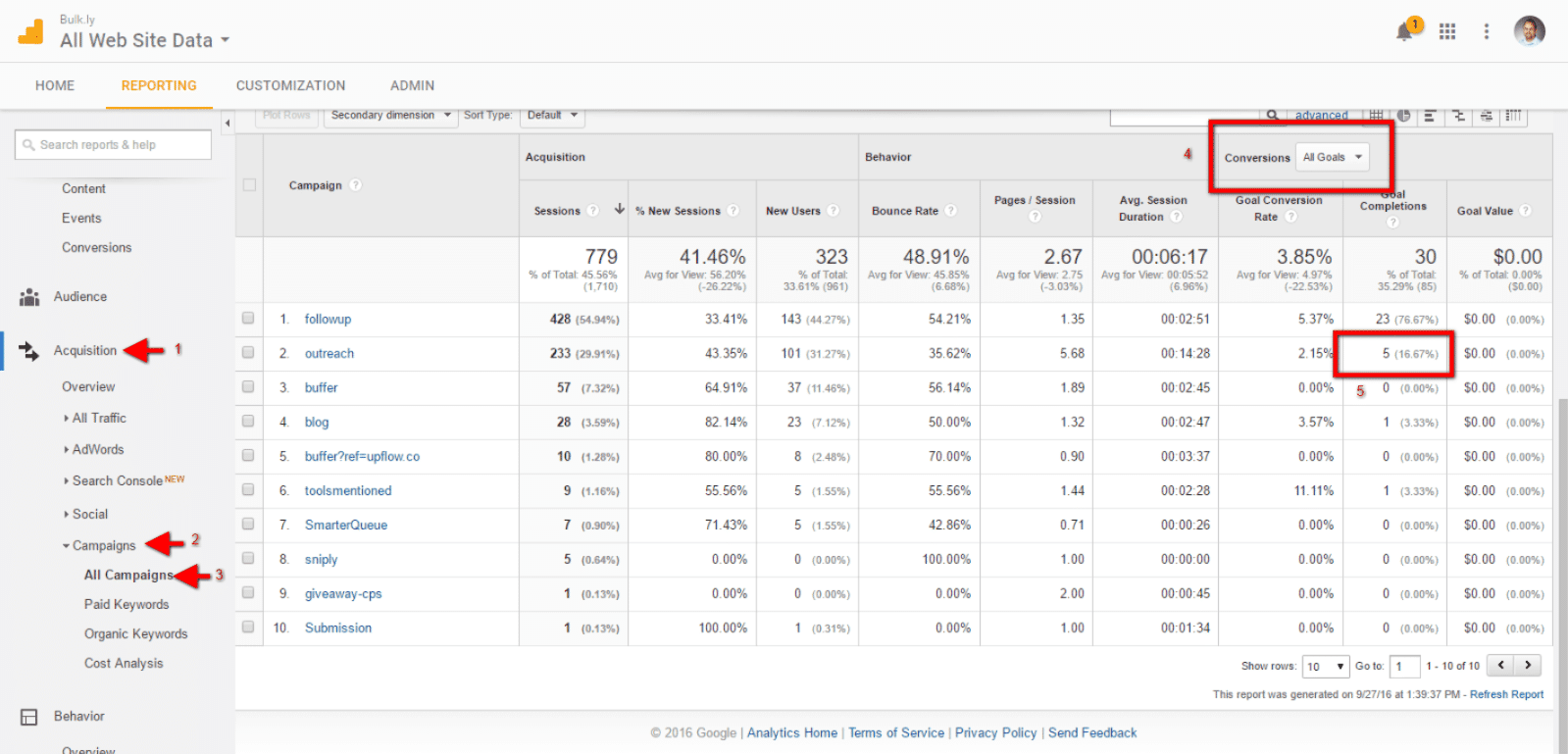
You can click on the campaign name to drill down even more for some detailed data if you are using UTM’s on multiple social networks. In this example, we see the different social channels that had UTM links and can if any channels out perform the others.
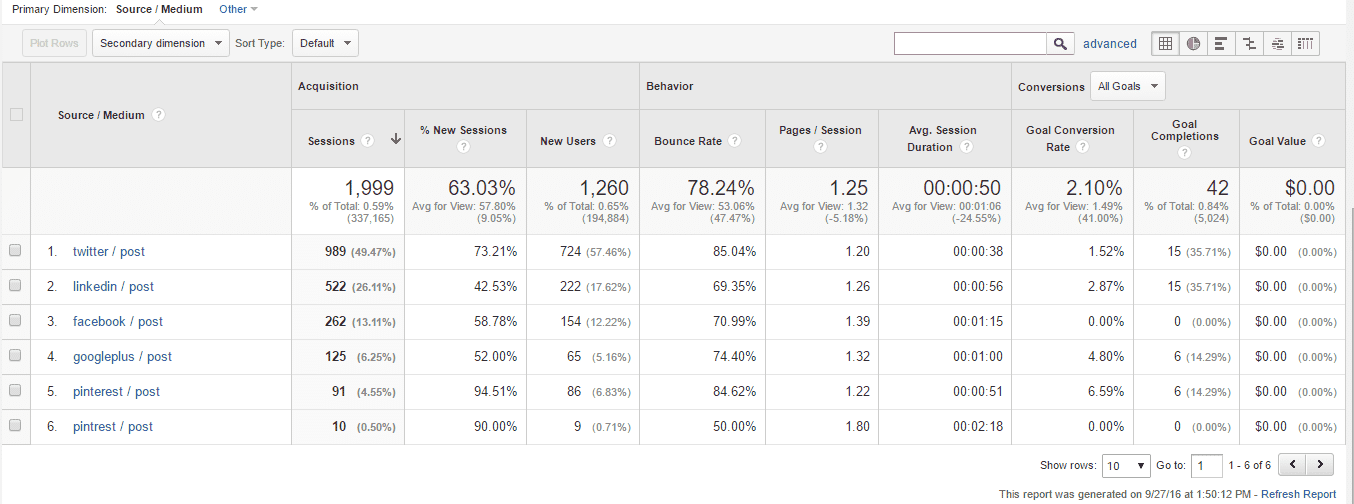
Using this insight, you can make better decisions about your social media strategy. It’s easier to see what is or isn’t working or areas you might want to try a different approach.
Do Your Social Media Posts Drive Results?
When you have implemented this approach, there won’t be any doubt as to whether or not your efforts are driving results. Google Analytics will show you exactly how your properly tracked social media updates impact your goals.
You can use this data to spend less time on a certain social channel and focus more time on one that is driving results.
In the end, having a more complete picture won’t leave you guessing if it’s working or not.
So, do you know if your social media posts are delivering the results you want?
Let me know in the comments how you plan to use this approach to create a better social media strategy that delivers results.
[yellowbox]Want my ready to go spreadsheet for building UTM links? Click here to download it. [/yellowbox]